Thursday, June 4, 2009

VMware Server - management over ssh

Both VMware Server versions, 1.0.x and 2.0.x, can be managed over ssh. Advantage of this is the simplicity of firewall rules which only have to allow ssh to enable VMware management - over ssh. Running VMware management over ssh is even more useful with VMware Server 2.0.x, which uses two TCP ports.

VMware Server 1.0.x
ssh -4 -v -L 1902:127.0.0.1:902 vmwareserver1.example.com
[messages resulting from -v option removed]
debug1: Local connections to LOCALHOST:1902 forwarded to remote address 127.0.0.1:902
debug1: Local forwarding listening on 127.0.0.1 port 1902.


ssh -v shows that all connections to local loopback address 127.0.0.1 and TCP port 1902 are forwarded over ssh to the server's loopback address 127.0.0.1 and port 902.

The reason I am using port 1902 at the local end is that in order to use port 902 ssh must run as root.

Connecting to the server with WMware Server Console is done by choosing "Remote host" and entering 127.0.0.1:1902 as "Host name".


VMware Server 2.0.x
ssh -L 1902:localhost:1902 -L 8333:localhost:8333 vmwareserver2.example.com

The difference with 1.0.x is that:
  • Two ports are forwarded now: also port 8333 is forwarded to the remote server
  • Local port 1902 as now forwarded to remote port 1902, not to port 902
Remote port 1902 is not the default port on the server. The default port was changed with vmware-config.pl command from 902 to 1902. The port belongs to VMware authd process.

VMware Server 2.0.x uses two ports for management:
  1. Port 8333 is used with web browser for initially contacting the server over https
  2. The number of second port is learned from connection 1, which in this case is 1902
The reason for configuring the authd port as 1902 is ssh. Now when the ssh command is run, there is no need to run it as root, since it does not have to bind to privileged port 902 but port 1902 instead.

If the server has already been configured to use port 902 and reconfiguring is not an easy option, the ssh command can be run e.g., with sudo as root with port set to 902.

In both cases, once the two ports (8333 and 1902 or 902) have been forwarded with ssh, the server can be contacted with the web browser using https://127.0.0.1:8333/

Tricky, isn't it?

Wednesday, May 20, 2009

IPv6 and Arch Red

Arch Red is now fully IPv6 connected. Web pages, email and DNS are most visible to everyone but also less used and internal services such as routing, RADIUS and centralized authentication run on IPv6 now. The latest addition was web availability over IPv6, so we can now consider ourselves as IPv6 enabled.

Why now? Is now the time to start using IPv6? From the technical perspective IPv6 is mostly ready. Some applications and services such as VPN could still be more widely available. There is time to fix these problems, but the according to the projections, IPv4 addresses can only be distributed using the current policy for a relatively short time. For Arch Red's people IPv6 is something we have done for years. Since we consider IPv6 as one of our areas of competence, this is the right time for us.

Based on our own experiences, it is of utmost importance to make your services ready before publishing them to others. Publishing usually means adding IPv6 information to DNS or by some other means advertising your IPv6 availability. This advice about readiness is almost a cliche. As the dictionary says: overused and has thus lost its original impact. Even if this is well known, IPv6 services often do not function as well as their IPv4 counterparts.

There are many things that could be said about IPv6 but now is not the time anymore to roll out barely functional IPv6 services. There are already users out there and more and more are using IPv6 each day.

Wednesday, May 13, 2009

Guest Server 2.6 and demo are here

Yesterday version 2.6 of Arch Red Guest Server was released. Along the new release, the demo was also updated and upgraded significantly. Besides WWW interface, the RADIUS interface is now available for connecting one's own RADIUS gear to see how the guest accounts work.

The reason for bringing the RADIUS interface available is to have a way to demonstrate what is possible with Radiator. Serving basic authentication protocols, EAP for WPA and WPA2 and returning tags associated with guest accounts is just a small scratch on the surface, but should provide a good starting point. For example, all kinds of possibilities are available when utilising Guest Server's tag support.

Thanks go to Karri for suggesting the RADIUS demo!

Monday, April 27, 2009

Arch Red Guest Server v2.6 getting near completion

Lately I have been working on the next release of Arch Red Guest Server. Version 2.6 includes new features and enhancements requested by our customers. Some examples are:
  • Guest account printing to PDF labels (badges, stickers, etc.)
  • Full internationalization support
  • A number of user interface enhancements
  • More configuration possibilities and controls for administrators
PDF label printing is handy when using the Guest Server as an integrated customer registration and access control solution. PDF label size can be variable, they can contain your desired logo and any text you see required, such as reminder about acceptable use policy.

The PDF label printing is also the first application of the new delivery framework, which offers a new interface for printing, mailing or using other methods such as SMS for delivering the account information to guests.

Guest names and event titles can now be any language and be mailed or printed without problems with garbled fonts. It does not matter where your guests come from, be it northern Europe or Japan for example, names and event titles display correctly leading to better customer satisfaction.

The user interface has been enchanced based on customer feedback. The workflow of adding guests is more streamlined and a number of other small enancements have been added.

For administrators the new version offers more configuration options for controlling the guest account creation and enhanced installer.

I will add more information and new demo showing the new version in a couple of days.

Wednesday, March 4, 2009

Expanding VMware virtual disk for Linux

Recently we had to resize a VMware virtual machine disk. The original disk allocated for the virtual machine was only 8 GiB when it was noticed 32 GiB would have been desired. Luckily the virtual disk can be expanded with the VMware web interface or using the command line tools. Also, the Linux file systems, at least ext3, can be resized, so it is possible to resize virtual machines without having to reinstall.

A note of caution: What I describe belowed worked for me. I also took a backup from the virtual machine before doing any of the operations. There is no guarantee that this is the best, correct or even recommended way of doing the the resize.

About the terms I have used:
  • host is the physical server that runs VMware Server. In our case version 2.0
  • guest is the virtual machine that runs on the host
Expanding the virtual disk
The first task was to expand the original 8 GiB virtual disk to 32 GiB. Here is what I did on the host:

host% sudo /opt/vmware/bin/vmware-vdiskmanager -x 32GB devel.vmdk
Grow: 100% done.
Disk expansion completed successfully.

WARNING: If the virtual disk is partitioned, you must use a third-party
utility in the virtual machine to expand the size of the
partitions. For more information, see:
http://www.vmware.com/support/kb/enduser/std_adp.php?p_faqid=1647

Now that the VMware disk image has been resized, what does it look like from the guest operating system? Boot up the guest and check with fdisk command:

guest% sudo fdisk -l /dev/sda
Disk /dev/sda: 34.3 GB, 34359738368 bytes
255 heads, 63 sectors/track, 4177 cylinders
Units = cylinders of 16065 * 512 = 8225280 bytes
Disk identifier: 0x000df028

Device Boot Start End Blocks Id System
/dev/sda1 * 1 1044 8385898+ 83 Linux

As one can see, the disk is now larger, but the Linux partition is still the same size as before resize.

The next steps are to expand the partition and its file system. In this case since we are resizing the root partition, the operation can not be done from the host operating itself. One method is to boot a live CD that contains the necessary tools.

Expanding the Linux partition and file system
For expanding the Linux partition and its file system, I decided to try GParted the Gnome Partition Editor which is conveniently available as a live CD.
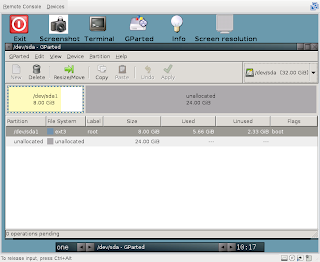

The main screen of GParted shows what the current configuration is. There is 8 GiB of allocated space for sda1 and 24 GiB space available for expansion.
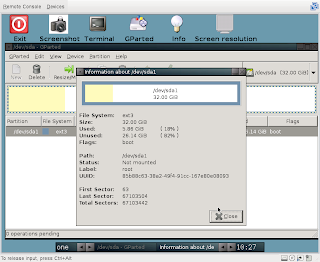


The resizing operation was simple. I clicked on "Resize/Move" to open a new window with a slider for moving and resizing the partition. I dragged the slider to cover the whole partition and clicked "Apply" from the main window. After the operation was completed, the partition was ready. Choosing "Partition -> Information" brings up this window:

The result
So did it work? Yes, just as expected.

After shutting the the GParted live CD and rebooting from the hard disk, everything was as expected. Host root file system was 32GiB, fdisk did not complain and no oddities were observed. Here are a couple of examples:


host% df -h
Filesystem Size Used Avail Use% Mounted on
/dev/sda1 32G 5.7G 25G 19% /
[rest of the output removed]

host% sudo fdisk -l /dev/sda
Disk /dev/sda: 34.3 GB, 34359738368 bytes
255 heads, 63 sectors/track, 4177 cylinders
Units = cylinders of 16065 * 512 = 8225280 bytes
Disk identifier: 0x000df028

Device Boot Start End Blocks Id System
/dev/sda1 * 1 4177 33551721 83 Linux

Thursday, February 12, 2009

RADIUS Roaming: Issues and Solutions presentation in the TREX 2009 seminar

In a moment I will have a presentation in a TREX Internet exchange point's seminar about RADIUS roaming and the issues and proposed solutions -- both current and the future prospects. The presentation covers the path from simple RADIUS usage to a more complex RADIUS roaming situation today.

The presentation is available here:
Karri Huhtanen, Arch Red Oy: RADIUS Roaming: Issues and Solutions

Wednesday, July 9, 2008

Arch Red Guest Server online demo updated

Arch Red Guest Server's online demo has now been updated to a new software version supporting features that are included in in the new editions of Arch Red Guest Server. From now on all the improvements made for Arch Red Guest Server are also included in online demo, in order to receive feedback for interested users and prospective customers.

Ask for your pilot user credentials through our web form.